Secure remote access for IT providers is not just a matter of choosing a VPN or remote support tool. A secure setup also defines which technician can connect, what systems they can reach, what actions they can take, how sessions are reviewed, and how access is removed when it is no longer needed.
The goal is practical: let an approved provider support your business without leaving broad, untracked access behind. The steps below can help you establish that process and ask better questions about vendor remote access security.
Start with a specific, approved reason for access
Before enabling remote access, document what work is being requested and which systems are involved. A request to troubleshoot a workstation does not automatically justify access to every server, mailbox, or business application.
Identify a person at your business who can approve the request, and confirm which provider team or technician will perform the work. For ongoing support, agree on the types of routine maintenance the provider can carry out without seeking separate approval each time. For unusual or sensitive work, set an approval step before access is granted.
Guidance from CISA on vendor access controls for small and midsize businesses can help frame access as a risk to assess and manage, rather than a one-time setup task.
Use named accounts, MFA, and limited permissions
Each technician should use an individual account tied to their identity. Avoid shared administrator logins. When several people use the same account, it becomes harder to determine who performed an action, change access for one person, or investigate an unexpected event.
Require multifactor authentication (MFA) for provider connections, especially for accounts with elevated privileges. MFA adds a check beyond a password, but it does not decide what a connected technician can access. Pair it with least-privilege remote access: give each account only the systems and permissions needed for its assigned work.
- Separate standard support access from administrator access where practical.
- Limit access by system, role, and task instead of granting broad access by default.
- Use a separate, controlled process when elevated permissions are needed.
- Review permissions when the provider changes staff, responsibilities, or supported systems.
NIST's access control guidance is a reference for organizations that need to formalize how authorized users reach systems and information. Businesses handling sensitive records or operational technology should also check applicable contractual and regulatory requirements with the appropriate advisers.
Choose a controlled connection method
A VPN and remote access software are different ways to create a connection; neither automatically makes provider access safe. A VPN can provide a protected route into a network, while remote support software can allow a technician to work on a particular device or session. The right option depends on the systems being supported and how the access can be restricted and monitored.
Ask how the provider controls its connection points, protects technician accounts, and prevents access from being used outside the agreed scope. Avoid exposing remote administration services broadly to the internet. CISA's guide to securing remote access software offers additional considerations for organizations configuring these tools.
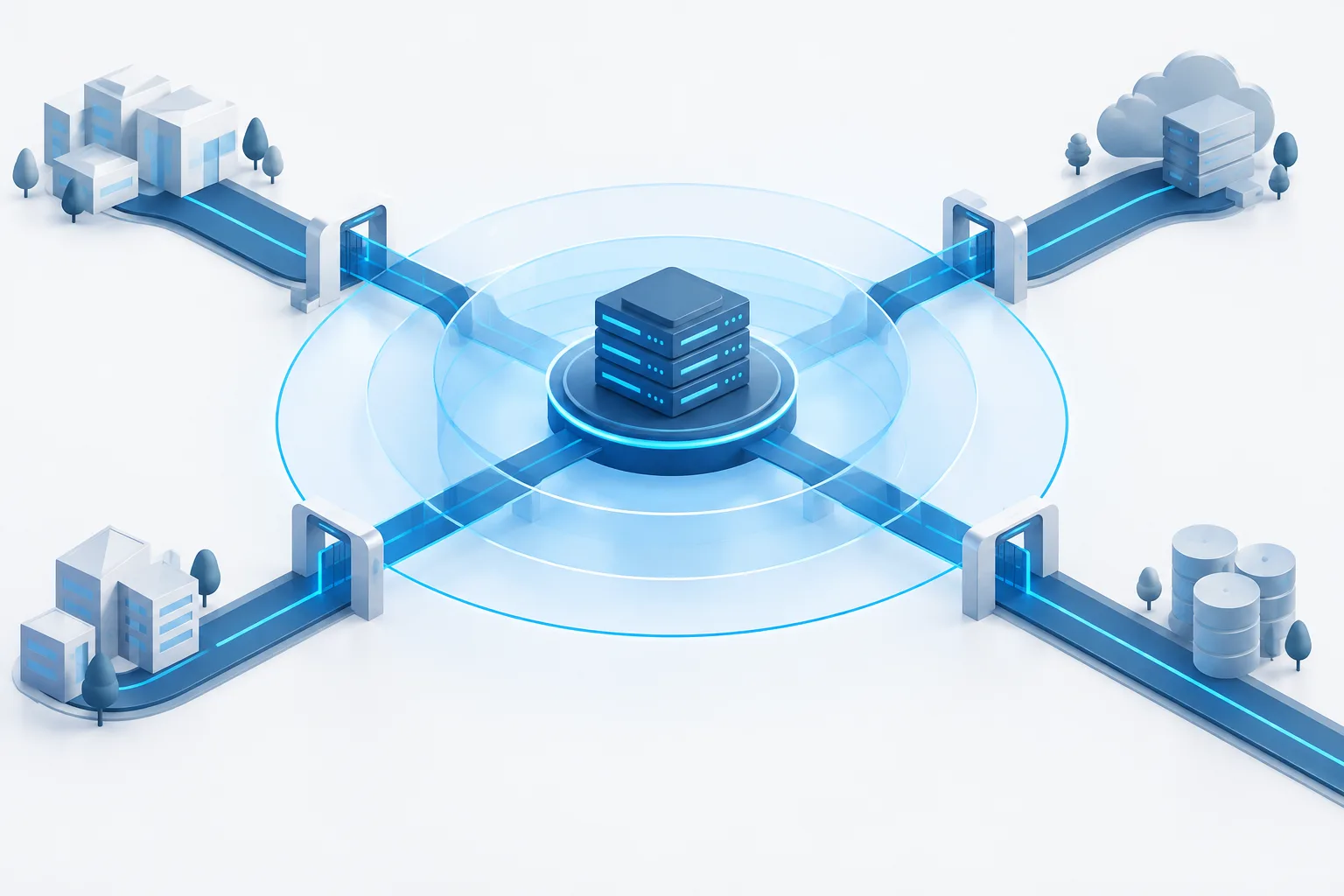
Ask for a clear explanation of the access path in plain language. You should know whether a technician connects to an individual device, a managed access gateway, or a wider part of your network, and what safeguards apply at each point.
Decide when access should be available
Always-on access can make routine support and monitoring easier, but it should still be bounded by individual accounts, appropriate permissions, and logging. Temporary or just-in-time access can reduce the time a connection is available for a scheduled task, but the approval and activation process needs to be workable during an urgent issue.
Agree on a model that fits the support arrangement. For scheduled work, document who approved access, its purpose, and when it should end. For emergency support, define who can authorize access and how the event will be recorded afterward. Make sure any exceptions are reviewed rather than left in place indefinitely.
Log activity and review it
Monitoring IT vendor access should provide a useful record, not just a vague assurance that activity is watched. Ask whether the system records the technician's account, connection time, systems reached, administrative actions, and session start and end. Depending on the tool and work involved, session recording may also be available.
Agree on who at your business reviews the records and what kinds of activity should be brought to your attention. Review access after sensitive work, unexpected changes, or a suspected security issue, and periodically confirm that active accounts and permissions still match the support arrangement. Zevonix says it provides around-the-clock monitoring; whatever provider you use, clarify what that monitoring covers and how concerns are escalated.
For more context on how ongoing oversight fits into a support approach, see this guide to proactive IT monitoring.
Put expectations in writing
Your agreement or written security requirements should describe how provider access is managed. Ask the provider to explain:
- Whether each technician has a unique account and MFA is required.
- How access is restricted to approved systems and tasks.
- Whether subcontractors may access your systems and how they are approved.
- What activity is logged, who can review it, and how you can request relevant records.
- How the provider will notify you about suspected unauthorized access or a security incident.
- How accounts and permissions are updated when provider staff or responsibilities change.
- How access will be disabled when work ends or the agreement ends.
For organizations with compliance obligations, confirm that the written process aligns with applicable contracts and requirements. Zevonix provides compliance support for requirements including HIPAA and GDPR, but a provider's involvement does not by itself establish that your business meets its obligations.
Make access removal part of the process
Revoke vendor access when a task is complete, a technician no longer needs access, the provider relationship ends, or you suspect an account has been misused. Do not rely only on an informal request or the assumption that an old account has expired.
Disable the relevant provider accounts and remote connections, remove active sessions and permissions, and check for other credentials or integrations created for the work. If a shared secret or credential may have been exposed, have the appropriate administrator replace it. Keep a record of what was disabled and verify that the provider can no longer connect through the approved paths.
Your broader user access process can help with this step. See the access removal checklist for ideas that also apply when a vendor's access needs to end.
Frequently asked questions
Should an IT provider use a VPN or remote access software?
There is no single right choice for every setup. Ask how the option limits access to the systems being supported, requires MFA, and records activity. The tool alone does not replace account-level permissions and monitoring.
Should each technician have their own account?
Yes. Individual accounts make it easier to attribute activity, adjust permissions for a specific technician, and remove access when that person no longer needs it. Avoid shared administrator accounts.
Should provider access be temporary or always on?
Use an approach that fits the work and has clear controls. Temporary access can suit scheduled tasks, while ongoing support may call for standing access with limited permissions, MFA, logging, and regular review. Document how emergency access is approved.
How do we revoke a provider's access?
Disable the provider's accounts and connection methods, remove related permissions and active sessions, and check for credentials or integrations created for the work. Verify that access has been removed and record the action.
Keep access useful, limited, and reviewable
Secure provider access depends on a lifecycle: approve the work, identify the technician, grant only the access required, review activity, and remove access when it is no longer justified. Start by asking your IT provider to walk you through that lifecycle for your environment. Zevonix supports businesses across the United States with remote and onsite support; you can call (904) 658-0777 to discuss your support needs.